- General Information
- Installation and Configuration
- Authentication and Authorization
- Command Usage
- Output Formats
- Autocomplete
- Advanced Configuration
- Modular-CLI Schema
- Annexes
- Project Information
This guide describes the installation, configuration, and usage of Modular-CLI – a specialized command-line interface tool for interacting with Modular-API. It provides comprehensive instructions for authentication, command execution, and automation workflows.
This guide is designed for:
- System Administrators managing cloud resources through Modular-API
- DevOps Engineers integrating Modular-CLI into CI/CD pipelines
- Support Engineers performing diagnostic and operational tasks
- Developers building automation scripts with Modular-CLI
- For Modular-API server setup and administration, refer to Modular-API Documentation
- For M3 Admin commands and cloud operations, see M3 Admin User Guide
- For SDK integration, see Modular-SDK Documentation
Modular-CLI is a specialized command-line interface tool for interacting with Modular-API. It provides a seamless way to execute commands, manage resources, and interact with multiple modules through a unified CLI interface.
| Feature | Description |
|---|---|
| Automatic Authentication | JWT token generation and management |
| Dynamic Command Loading | Automatically discovers available commands based on permissions |
| Multiple Output Formats | JSON, table, and plain text output |
| Autocomplete Support | Command and parameter autocompletion (Unix-based systems only) |
| Secure Credential Storage | Encrypted local storage of authentication credentials |
| Real-time Validation | Parameter validation before sending requests |
| Unified Interface | Single entry point for all Modular-API modules |
Modular-CLI acts as a client-side interface that:
- Authenticates users with Modular-API
- Retrieves available commands based on user permissions
- Dynamically generates CLI commands from API metadata
- Validates inputs before sending requests
- Formats and displays responses in user-friendly formats
- Manages JWT tokens and session persistence
Before using Modular-CLI, ensure you have:
| Requirement | Description |
|---|---|
| Python 3.10+ | Python interpreter installed |
| pip | Package manager for Python |
| Active Modular-API server | Server must be running and network accessible |
| Valid user credentials | Username and password from administrator |
| Network connectivity | Access to Modular-API server endpoint |
Download and install Python 3.10 or higher:
Verify installation:
python --version
# Expected: Python 3.10.x or higher

pip --version
# Expected: pip 21.x or higher
IMPORTANT: Using a virtual environment is highly recommended to prevent dependency conflicts.
On Linux/Mac:
python3.10 -m venv modular_cli_venv
source modular_cli_venv/bin/activate
On Windows (PowerShell):
python -m venv modular_cli_venv
.\modular_cli_venv\Scripts\Activate.ps1From Source:
# Clone repository
git clone https://github.com/epam/modular-cli.git
cd modular-cli

# Install
pip install .

# Or download from PYPI
pip install modular-cli

# Verify installation
modular_cli --versionYou can customize the command name by setting an environment variable before installation:
On Linux/Mac:
export MODULAR_CLI_ENTRY_POINT=modular
pip install .

# Now use your custom command name
modular --help
On Windows:
$env:MODULAR_CLI_ENTRY_POINT="modular"
pip install .

# Now use your custom command name
modular --help
NOTE: This documentation uses modular_cli as the default entry point. Replace it with your custom name if configured differently.
Before using Modular-CLI, you must configure the connection to your Modular-API server.
Basic Setup:
modular_cli setup \
  --username YOUR_USERNAME \
  --password YOUR_PASSWORD \
  --api_path https://your-modular-api.example.com/integration
Example:
modular_cli setup \
  --username john_doe \
  --password SecureP@ssw0rd \
  --api_path https://api.company.com/modular/integration
Expected output:
Response:
Great! The CLI tool 'modular_cli' has been set up
IMPORTANT: The Modular-API server must be running and accessible when executing the setup command.
To update existing configuration (change credentials or API path):
modular_cli setup \
  --username new_username \
  --password new_password \
--api_path https://new-api.example.com/integrationTo delete all stored credentials and configuration:
modular_cli cleanupExpected output:
Response:
Configuration for the CLI tool 'modular_cli' has been deleted
WARNING: This command removes all local configuration. You'll need to run setup again before using Modular-CLI.
Modular-CLI stores configuration in the following locations:
| Platform | Path |
|---|---|
| Linux/Mac | ~/.modular_cli/ |
| Windows | C:\Users\<Username>\.modular_cli\ |
Configuration Files:
| File | Description |
|---|---|
commands_meta.json |
Commands metadata file |
credentials |
User credentials file |
After configuring Modular-CLI, you must authenticate to receive a JWT token and retrieve available commands.
modular_cli loginExpected output:
Response:
Login successful
Credentials file example (~/.modular_cli/credentials):
access_token: eyJhbGciOiJIUzI1NiIsInR5cCI6IkpXVCJ9.eyJ1c2VybmFtZSI6ImpvaG5fZG9lIiwiaWF0IjoxNzYzNDU1MTQ3LCJleHAiOjE3NjM1NDE1NDcsIm1ldGFfdmVyc2lvbiI6IjUzMDkxMTdlYTE2YTc4OWZiZmFjZDZjYzk4MGY4OTM4ZmFkYjA2NWIifQ.yw3RUDFj-gbl8IPavxlQvMgAUlrDE9PI6zY_K7hKFY4
api_link: http://127.0.0.1:8088/integration
password: qwertyuiasdfghjk21
refresh_token: eyJhbGciOiJIUzI1NiIsInR5cCI6IkpXVCJ9.eyJ1c2VybmFtZSI6ImpvaG5fZG9lIiwidmVyc2lvbiI6ImZlMWQ3MWNlMWM2MTllZjcyMTljZDJmYzk3YzVkY2JiMWMzM2FmYTA5ZmJkZWE4MmQ4ODI1OGQ1YTBiZTdkOTkiLCJpYXQiOjE3NjM0NTUxNDcsImV4cCI6MTc2NDY2NDc0N30.Z6M628PTxOsvrm5Owzmau6o7UJrsIBPfAQKP7QRkIsY
username: john_doe
version: 4.3.8
| Token Type | Validity | Purpose |
|---|---|---|
| Access Token | 24 hours | Used for command execution |
| Refresh Token | 14 days | Used to automatically renew access tokens |
Modular-CLI automatically manages token lifecycle:
What happens during login:
- Sends credentials to Modular-API
- Receives two JWT tokens (access and refresh)
- Retrieves command metadata based on user permissions
- Caches tokens and metadata locally
- Generates dynamic Click commands from metadata
How token refresh works:
- When access token expires, Modular-CLI automatically uses the refresh token to obtain a new access token
- This happens transparently without user intervention
- Only when the refresh token expires (after 14 days of inactivity) must you manually run
modular_cli login
To manually refresh your token:
modular_cli loginTo check token status and permissions:
modular_cli version --detailedAvailable commands depend on your user permissions defined in Modular-API:
| Component | Description |
|---|---|
| Policies | Define allowed/denied operations |
| Groups | Combine multiple policies |
| Users | Inherit permissions from assigned groups |
Example:
User john_doe in group l3support can only execute commands allowed by L3 support policies:
# This works - allowed by policy
modular_cli tenant describe --tenant AWS-MSTR-DEV

# This fails - denied by policy
modular_cli tenant deactivate_region --tenant AWS-MSTR-DEV --cloud AWS --all_regions
# Error: Access denied. Insufficient permissions.| Practice | Description |
|---|---|
| Never share credentials | Keep tokens and credential files private |
| Use strong passwords | Follow complexity requirements |
| Logout when done | Clear cached tokens after sessions |
| Rotate credentials | Change passwords regularly |
| Use read-only accounts | For auditing and monitoring tasks |
| Monitor audit logs | Watch for suspicious activity |
| Store credentials securely | Use password managers for sensitive data |
The Modular-CLI follows a hierarchical, multi-layered command structure designed for intuitive navigation and organization.
| Level | Description |
|---|---|
| Root Commands | Top-level commands available directly under modular_cli |
| Command Groups | Collections of related commands (can contain commands and subgroups) |
| Subcommands | Specific actions within a group or subgroup |
modular_cli
├── [Command]           # Direct executable commands
├── [Command]
└── [Group]             # Command groups
    ├── [Command]       # Commands within the group
    ├── [Command]
    └── [Subgroup]      # Nested subgroups
        ├── [Command]
        └── [Command]
You can access help documentation at any level of the command hierarchy:
modular_cli --help                    # Show all root-level commands and groups
modular_cli [group] --help            # Show commands within a specific group
modular_cli [group] [subgroup] --help # Show commands within a subgroupmodular_cli setup --username <USER> --password <PASS> --api_path <URL>Parameters:
| Parameter | Required | Description |
|---|---|---|
--username |
✓ | Your Modular-API username |
--password |
✓ | Your password |
--api_path |
✓ | Modular-API server URL |
Example:
modular_cli setup \
  --username admin \
  --password Admin123! \
--api_path https://modular.company.com/integrationmodular_cli loginPurpose: Authenticate user, retrieve JWT token, and refresh available commands.
Output:
Response:
Login successful
modular_cli cleanupPurpose: Remove all stored configuration and credentials.
Output:
Response:
Configuration for the CLI tool 'modular_cli' has been deleted
modular_cli version --detailedParameters:
| Parameter | Required | Description |
|---|---|---|
--detailed |
No | Show all modules with detailed information |
Examples:
# Show server and client versions
modular_cli version
Output:
Server: 4.3.8
Client: 2.3.15
# Show detailed information
modular_cli version --detailed
Output:
Server: 4.3.6
Client: 2.3.13
Billing: 1.1.1
Private: 1.0.6
Low_level: 1.0.15
Maintenance: 1.0.9
Permissions: 2.0.22
Notifications: 1.0.14
Chef: 1.0.2
M3admin: 4.150.5
modular_cli health_checkPurpose: Verify Modular-API server connectivity and health.
Output:
Response:
Health check successful
modular_cli --helpExpected output:
Description: Here are the commands supported by the current version of modular_cli
IMPORTANT: The scope of commands you can execute depends on your user permissions
Usage: modular_cli [module] group [subgroup] command [parameters]
Options:
  --help     Show this message and exit

Available modules:
  chef

Available groups:
  application
  approval
  aws
  azure
  configure
  enterprise
  ...

Available commands:
  cleanup
  get_operation_status
  health_check
  login
  setup
  version
modular_cli chef --helpExpected output:
Description: Here are the commands supported by the current version of modular_cli.
IMPORTANT: The scope of commands you can execute depends on your user permissions
Usage: modular_cli [module] group [subgroup] command [parameters]
Options:
  --help     Show this message and exit

Available groups:
  setting

Available commands:
  add_configuration
  assign_configuration
  delete_client
  delete_configuration
  describe_configuration
  get_client
  set_configuration
  unassign_configuration
  update_configuration
  update_role
modular_cli tenant describe --helpExpected output:
Description:
    Lists tenants by certain filters.

Usage: modular_cli tenant describe [parameters]
Parameters:
    --tenant,              -tn,     Apply filter by tenant display name
    --customer_id,         -cid,    Apply filter by customer
    --cloud,               -c,      Apply filter by cloud AZURE|GOOGLE|AWS|...
    --active,              -A,      Apply filter by active
    --account,             -acc,    Apply filter by tenant's account
    --get_linked_tenants,  -glt,    Flag. Retrieve linked tenants
    --json,                         Show response in JSON view
    --table,                        Show response in Table view
modular_cli tenant describe --tenant AWS-MSTR-DEVmodular_cli tenant add_contacts \
--tenant AWS-MSTR-DEV \
--cloud AWS \
--default_owner john.doe@example.com \
--primary_contact admin@example.commodular_cli tenant describe_regions \
--customer_id EPAM \
--cloud AWS \
--cloud AZURE \
--cloud GOOGLEmodular_cli chef add_configuration \
--name prod-chef-config \
--chef_server_url https://chef.company.com \
--validator_key_path /path/to/validator.pemMost commands support these common parameters:
| Parameter | Description |
|---|---|
--json |
Output response in JSON format |
--table |
Output response in table format |
--help |
Display command-specific help |
Modular-CLI supports three output formats: plain text (default), JSON, and table.
By default, commands display output in table format when the response is large:
modular_cli tenant describeOutput:
The command's response is pretty huge and the result table structure can be broken.
Do you want to show the response in the JSON format? [y/n]: n

List of tenants
Status: SUCCESS
+----------------------+------------+---------------+------------------+...+----------+...+
|    Tenant name       |   Cloud    | Display name  |    Customer      |...|  Active  |...|
+----------------------+------------+---------------+------------------+...+----------+...+
| AWS-MSTR-DEV         | AWS        | MSTR-DEV      | EPAM Systems     |...|   True   |...|
| AWS-SFTG-MSTR-RES2   | AWS        | SFTG-MSTR     | EPAM Systems     |...|   True   |...|
| VSPHERE_TEST         | VSPHERE    | TEST          | EPAM Systems     |...|   True   |...|
+----------------------+------------+---------------+------------------+...+----------+...+
For specific tenant:
modular_cli tenant describe --tenant TEST-TENANT-001Output:
Response:
Tenants not found by tenant: 'TEST-TENANT-001'
Use the --json flag to get structured JSON output suitable for parsing and automation:
modular_cli tenant describe --tenant TEST-TENANT-001 --jsonOutput:
{
    "status": "SUCCESS",
    "code": 200,
    "message": "Tenants not found by tenant: 'TEST-TENANT-001'",
    "warnings": [],
    "meta": {}
}
Example with data:
modular_cli tenant describe --jsonOutput (truncated):
{
    "status": "SUCCESS",
    "code": 200,
    "table_title": "List of tenants",
    "items": [
        {
            "Tenant name": "AWS-MSTR-DEV",
            "Cloud": "AWS",
            "Display name": "MSTR-DEV",
            "Customer": "EPAM Systems",
            "Linked to": "",
            "Contacts": {
                "default_owner": "some_user1@epam.com",
                "primary_contacts": [
                    "some_user2@gmail.com",
                    "some_user3@epam.com"
                ],
                "secondary_contacts": [],
                "tenant_manager_contacts": []
            },
            "Active": true,
            "Billing settings": {
                "deactivation_request_date": null,
                "default_for_common_cost": "AWS-EUCENTRAL",
                "last_rate_cards": null,
                "most_recent_record_date": null,
                "personal": false,
                "tenant_type": "NOT_BILLABLE"
            },
            "Account ID": "958173500045",
            "Activation Date": "2021-04-16T10:51:45.615Z",
            "Deactivation Date": ""
        }
    ],
    "warnings": [],
    "meta": {}
}
Use cases for JSON output:
| Use Case | Description |
|---|---|
| Automation scripts | Parse output programmatically |
| CI/CD pipelines | Process results in build scripts |
| Logging | Store structured logs for analysis |
| Integration | Feed data into other tools |
Example: Parsing JSON in Bash
#!/bin/bash

# Get tenant info and extract account ID
RESULT=$(modular_cli tenant describe --tenant AWS-MSTR-DEV --json)
ACCOUNT_ID=$(echo $RESULT | jq -r '.items[0]."Account ID"')

echo "Account ID: $ACCOUNT_ID"
Example: Parsing JSON in Python
import subprocess
import json

# Execute command
result = subprocess.run(
    ['modular_cli', 'tenant', 'describe', '--tenant', 'AWS-MSTR-DEV', '--json'],
    capture_output=True,
    text=True,
)

# Parse JSON
data = json.loads(result.stdout)
if data['status'] == 'SUCCESS':
    tenant_info = data['items'][0]
print(f"Account ID: {tenant_info['Account ID']}")Use the --table flag for formatted table output (this is the default for most commands):
modular_cli tenant describe --tenant AWS-MSTR-DEV --tableUse cases for table output:
| Use Case | Description |
|---|---|
| Human-readable reports | Easy to read in terminal |
| Documentation | Copy-paste into documents |
| Presentations | Clear visual format |
| Quick checks | Rapid information scanning |
All responses follow this structure:
{
  "status": "SUCCESS|FAILED",
  "code": 200-599,
  "message": "string|object|array",
  "warnings": [],
  "meta": {}
}
Fields:
| Field | Description |
|---|---|
status |
Operation result (SUCCESS or FAILED) |
code |
HTTP status code (200, 400, 401, 403, 404, 500) |
message |
Response data (format depends on command) |
warnings |
Non-critical warnings during execution |
meta |
Additional metadata |
Modular-CLI supports command autocompletion for enhanced productivity on Unix-based systems (Linux and macOS).
Supported Shells:
| Shell | Supported |
|---|---|
| Bash | ✓ |
| Zsh | ✓ |
| Windows PowerShell | ✗ |
NOTE: Autocomplete is not available on Windows. Attempting to enable it on Windows will result in an error:
OSError: The OS is not applicable for autocompletion setup. Current OS is win32
Before enabling autocomplete:
- Virtual environment must be activated
- Modular-CLI must be installed
- You must have sudo/root privileges
source /path/to/modular_cli_venv/bin/activatesudo ln -s /path/to/modular_cli_venv/bin/modular_cli /usr/local/bin/modular_cliExample:
sudo ln -s /usr/local/project/modular/.cli_venv/bin/modular_cli /usr/local/bin/modular_cliClose and reopen your terminal or open a new tab.
sudo modular_cli enable_autocompleteExpected output:
Autocomplete for 'modular_cli' has been successfully set up.
Path to the 'profile.d' file: /etc/profile.d/profile_modular_cli_complete.sh
Or for RC file setup:
Autocomplete has been successfully installed and will start work after the current terminal session reload.
If you want to manually activate autocomplete without reloading the terminal session,
please run the following command:
source ~/.bashrc
Close and reopen your terminal for changes to take effect.
After enabling autocomplete, you can use Tab key to complete commands:
| Action | Command | Result |
|---|---|---|
| Complete group names | modular_cli ten[TAB] |
modular_cli tenant |
| Complete command names | modular_cli tenant des[TAB] |
modular_cli tenant describe |
| View available options | modular_cli tenant describe --[TAB][TAB] |
Shows all available flags |
To remove autocomplete functionality:
sudo modular_cli disable_autocompleteExpected output:
Autocomplete for 'modular_cli' has been successfully removed
Issue: Tab completion doesn't work after enabling.
Solution:
-
Verify symlink exists:
ls -l /usr/local/bin/modular_cli
-
Check shell configuration:
grep modular_cli ~/.bashrc  # For Bash
grep modular_cli ~/.zshrc   # For Zsh
-
Restart terminal session
-
Try enabling again:
sudo modular_cli enable_autocomplete
Issue: Cannot create symlink or enable autocomplete.
Solution: Ensure you're using sudo:
sudo ln -s /path/to/venv/bin/modular_cli /usr/local/bin/modular_cli
sudo modular_cli enable_autocompleteIssue: Error when creating symlink: "File exists"
Solution: Remove old symlink and create new one:
sudo rm /usr/local/bin/modular_cli
sudo ln -s /path/to/venv/bin/modular_cli /usr/local/bin/modular_cliModular-CLI supports several environment variables for advanced configuration:
| Variable | Description | Default |
|---|---|---|
MODULAR_CLI_LOG_PATH |
Custom path for log files | ~/.modular_cli/logs/ |
MODULAR_CLI_ENTRY_POINT |
Custom command name | modular_cli |
MODULAR_CLI_LOG_LEVEL |
Logging verbosity level | INFO |
Custom path for storing Modular-CLI log files.
Default locations:
| Platform | Path |
|---|---|
| Linux/Mac | ~/.modular_cli/logs/ |
| Windows | C:\Users\<Username>\.modular_cli\logs\ |
Example:
export MODULAR_CLI_LOG_PATH=/var/log/modular-cli
modular_cli loginCustom command name for Modular-CLI.
Example:
export MODULAR_CLI_ENTRY_POINT=modular
pip install .

# Now use custom command
modular --helpLogging verbosity level.
| Level | Description |
|---|---|
DEBUG |
Detailed information for debugging |
INFO |
General operational information |
WARNING |
Warning messages only |
ERROR |
Error messages only |
CRITICAL |
Critical errors only |
Example:
export MODULAR_CLI_LOG_LEVEL=DEBUG
modular_cli loginCredentials are stored in ~/.modular_cli/credentials:
access_token: eyJhbGciOiJIUzI1NiIsInR5cCI6IkpXVCJ9...
api_link: http://127.0.0.1:8088/integration
m3admin_version: 4.154.3
password: qwertyuiasdfghjk
refresh_token: eyJhbGciOiJIUzI1NiIsInR5cCI6IkpXVCJ9...
username: john_doe
version: 4.3.8
WARNING: Do not manually edit configuration files. Use modular_cli setup command instead.
To work with multiple Modular-API instances, you can switch configurations:
Profile 1: Production
modular_cli setup \
  --username prod_user \
  --password ProdPass123! \
  --api_path https://prod-modular.company.com/integration

modular_cli login
Profile 2: Staging
modular_cli setup \
  --username stage_user \
  --password StagePass123! \
  --api_path https://stage-modular.company.com/integration

modular_cli login
NOTE: Only one profile can be active at a time. Running setup overwrites the current configuration.
# Default location (Linux/Mac)
tail -f ~/.modular_cli/logs/modular_cli.log

# Default location (Windows)
type %USERPROFILE%\.modular_cli\logs\modular_cli.log

# Custom location (if MODULAR_CLI_LOG_PATH is set)
tail -f $MODULAR_CLI_LOG_PATH/modular_cli.log2025-01-19 10:30:45,123 - INFO - Starting Modular-CLI v2.3.15
2025-01-19 10:30:45,234 - INFO - Loading configuration from /home/user/.modular_cli/credentials
2025-01-19 10:30:45,456 - INFO - Authenticating user: john_doe
2025-01-19 10:30:46,789 - INFO - JWT token received and cached
2025-01-19 10:30:47,012 - INFO - Command metadata refreshed
Enable debug logging for troubleshooting:
export MODULAR_CLI_LOG_LEVEL=DEBUG
modular_cli login
Debug output includes:
- HTTP request/response details
- Token validation steps
- Command parsing process
- Parameter validation
- Error stack traces
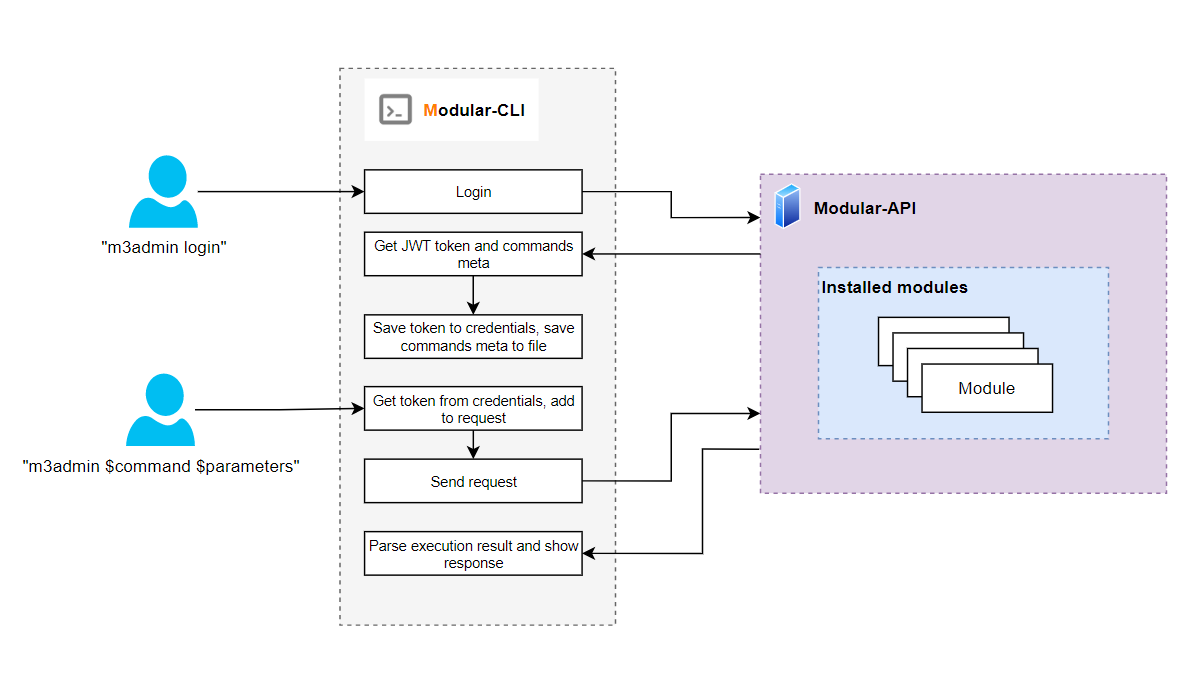
- User executes
modular_cli login - CLI reads credentials from local configuration
- Sends authentication request to Modular-API
- Receives JWT token and command metadata
- Caches token and metadata locally
- Generates dynamic Click commands from metadata
- User executes command:
modular_cli tenant describe - CLI validates command exists in cached metadata
- CLI validates required parameters provided
- CLI constructs HTTP request with JWT token
- CLI sends request to Modular-API
- Modular-API validates token and permissions
- Modular-API executes command on backend module
- Modular-API returns response
- CLI formats and displays response
┌─────────────────────────────────────────────────────┐
│                     User                            │
└─────────────────────┬───────────────────────────────┘
                      │
                      │ Command Execution
                      ▼
┌─────────────────────────────────────────────────────┐
│                 Modular-CLI                         │
│                                                     │
│  ┌─────────────────────────────────────────────┐    │
│  │  Configuration Manager                      │    │
│  │  - Load/Save config                         │    │
│  │  - Credential storage                       │    │
│  └─────────────────────────────────────────────┘    │
│                                                     │
│  ┌─────────────────────────────────────────────┐    │
│  │  Authentication Manager                     │    │
│  │  - JWT token handling                       │    │
│  │  - Token expiry checks                      │    │
│  └─────────────────────────────────────────────┘    │
│                                                     │
│  ┌─────────────────────────────────────────────┐    │
│  │  Command Generator                          │    │
│  │  - Dynamic Click command creation           │    │
│  │  - Parameter validation                     │    │
│  └─────────────────────────────────────────────┘    │
│                                                     │
│  ┌─────────────────────────────────────────────┐    │
│  │  HTTP Client                                │    │
│  │  - Request construction                     │    │
│  │  - Response handling                        │    │
│  └─────────────────────────────────────────────┘    │
│                                                     │
│  ┌─────────────────────────────────────────────┐    │
│  │  Output Formatter                           │    │
│  │  - JSON formatting                          │    │
│  │  - Table generation                         │    │
│  └─────────────────────────────────────────────┘    │
└─────────────────────┬───────────────────────────────┘
                      │
                      │ HTTPS Requests
                      ▼
┌─────────────────────────────────────────────────────┐
│                 Modular-API                         │
│  - Authentication                                   │
│  - Authorization                                    │
│  - Command Execution                                │
│  - Response Generation                              │
└─────────────────────────────────────────────────────┘
This annex provides real-world examples and workflows for common Modular-CLI tasks.
- Use Case 1: First-Time Setup
- Use Case 2: Automation Script
- Use Case 3: CI/CD Integration
- Use Case 4: Batch Operations
- Use Case 5: Monitoring Script
- Use Case 6: Python Integration
Scenario: Setting up Modular-CLI for the first time.
Step 1: Create Virtual Environment
python3.10 -m venv ~/.venv/modular_cli
source ~/.venv/modular_cli/bin/activate
Step 2: Install Modular-CLI
pip install /path/to/modular-cliStep 3: Configure Connection
modular_cli setup \
  --username your_username \
  --password your_password \
  --api_path https://modular-api.company.com/integration
Step 4: Authenticate
modular_cli loginStep 5: Verify Setup
modular_cli health_check
modular_cli version --detailed
modular_cli --helpScenario: Create a script to describe all tenants and export to JSON.
Script: export_tenants.sh
#!/bin/bash

# Configuration
OUTPUT_DIR="/opt/reports/tenants"
TIMESTAMP=$(date +%Y%m%d_%H%M%S)
OUTPUT_FILE="${OUTPUT_DIR}/tenants_${TIMESTAMP}.json"

# Create output directory
mkdir -p ${OUTPUT_DIR}

# Activate virtual environment
source ~/.venv/modular_cli/bin/activate

# Ensure authenticated
modular_cli login > /dev/null 2>&1

# Export tenants to JSON
echo "Exporting tenants to ${OUTPUT_FILE}..."
modular_cli tenant describe --json > ${OUTPUT_FILE}

# Check if export succeeded
if [ $? -eq 0 ]; then
    echo "Export successful"
    echo "File: ${OUTPUT_FILE}"

    # Parse and display summary
    TENANT_COUNT=$(jq '.items | length' ${OUTPUT_FILE})
    echo "Total tenants: ${TENANT_COUNT}"
else
    echo "Export failed"
    exit 1
fi
Usage:
chmod +x export_tenants.sh
./export_tenants.shScenario: Integrate Modular-CLI into GitLab CI/CD pipeline.
.gitlab-ci.yml
stages:
  - setup
  - deploy
  - verify

variables:
  MODULAR_API_URL: "https://modular-api.company.com/integration"

before_script:
  - python -m venv venv
  - source venv/bin/activate
  - pip install modular-cli

setup_modular:
  stage: setup
  script:
    - modular_cli setup
        --username ${MODULAR_USERNAME}
        --password ${MODULAR_PASSWORD}
        --api_path ${MODULAR_API_URL}
    - modular_cli login
  artifacts:
    paths:
      - ~/.modular_cli/
    expire_in: 1 hour

verify_tenant:
  stage: verify
  script:
    - source venv/bin/activate
    - |
      modular_cli tenant describe \
        --tenant ${CI_ENVIRONMENT_NAME} \
        --json | tee verify_result.json
    - |
      ACTIVE=$(jq -r '.items[0].Active' verify_result.json)
      if [ "${ACTIVE}" != "true" ]; then
        echo "Tenant not active"
        exit 1
      fi
  dependencies:
- setup_modularScenario: Process multiple tenants from a list.
Script: batch_describe.sh
#!/bin/bash

# Tenant list file
TENANT_LIST="tenants.txt"
OUTPUT_DIR="tenant_reports"

# Create output directory
mkdir -p ${OUTPUT_DIR}

# Activate virtual environment
source ~/.venv/modular_cli/bin/activate

# Authenticate
modular_cli login

# Process each tenant
while IFS= read -r tenant; do
    echo "Processing tenant: ${tenant}"

    # Describe tenant
    modular_cli tenant describe \
        --tenant "${tenant}" \
        --json > "${OUTPUT_DIR}/${tenant}.json"

    # Check status
    if [ $? -eq 0 ]; then
        echo "✓ ${tenant} - Success"
    else
        echo "✗ ${tenant} - Failed"
    fi

    # Small delay to avoid rate limiting
    sleep 1
done < "${TENANT_LIST}"

echo "Batch processing complete"
echo "Reports saved in: ${OUTPUT_DIR}"
tenants.txt:
AWS-MSTR-DEV
AWS-SFTG-MSTR-RES1-DEV
AWS-SFTG-MSTR-RES2-DEV
VSPHERE_TEST
Usage:
chmod +x batch_describe.sh
./batch_describe.shScenario: Monitor API health and alert on failures.
Script: monitor_api.sh
#!/bin/bash

# Configuration
LOG_FILE="/var/log/modular-cli-monitor.log"
ALERT_EMAIL="ops-team@company.com"
CHECK_INTERVAL=300  # 5 minutes

# Activate virtual environment
source ~/.venv/modular_cli/bin/activate

# Function to log messages
log_message() {
    echo "$(date '+%Y-%m-%d %H:%M:%S') - $1" | tee -a ${LOG_FILE}
}

# Function to send alert
send_alert() {
    local subject="$1"
    local message="$2"
    echo "${message}" | mail -s "${subject}" ${ALERT_EMAIL}
}

# Monitoring loop
while true; do
    # Check API health
    HEALTH_OUTPUT=$(modular_cli health_check 2>&1)
    HEALTH_STATUS=$?

    if [ ${HEALTH_STATUS} -eq 0 ]; then
        log_message "API Health: OK"
    else
        log_message "API Health: FAILED"
        send_alert "Modular-API Health Check Failed" "${HEALTH_OUTPUT}"
    fi

    # Try to get version
    VERSION_OUTPUT=$(modular_cli version 2>&1)
    VERSION_STATUS=$?

    if [ ${VERSION_STATUS} -eq 0 ]; then
        log_message "Version Check: OK - ${VERSION_OUTPUT}"
    else
        log_message "Version Check: FAILED"
        send_alert "Modular-API Version Check Failed" "${VERSION_OUTPUT}"
    fi

    # Wait before next check
    sleep ${CHECK_INTERVAL}
doneScenario: Use Modular-CLI from Python scripts.
Script: tenant_manager.py
#!/usr/bin/env python3

import subprocess
import json
import sys

class ModularCLI:
    """Wrapper for Modular-CLI commands"""

    def __init__(self, cli_path='modular_cli'):
        self.cli_path = cli_path

    def execute(self, command, json_output=True):
        """Execute Modular-CLI command"""
        cmd = [self.cli_path] + command

        if json_output and '--json' not in cmd:
            cmd.append('--json')

        try:
            result = subprocess.run(
                cmd,
                capture_output=True,
                text=True,
                check=True,
            )

            if json_output:
                return json.loads(result.stdout)
            return result.stdout

        except subprocess.CalledProcessError as e:
            print(f"Command failed: {' '.join(cmd)}", file=sys.stderr)
            print(f"Error: {e.stderr}", file=sys.stderr)
            return None

    def describe_tenant(self, tenant_name):
        """Describe specific tenant"""
        return self.execute(['tenant', 'describe', '--tenant', tenant_name])

    def list_tenants(self):
        """List all tenants"""
        return self.execute(['tenant', 'describe'])

    def health_check(self):
        """Check API health"""
        return self.execute(['health_check'])

def main():
    cli = ModularCLI()

    # Check health
    print("Checking API health...")
    health = cli.health_check()
    if health and health['status'] == 'SUCCESS':
        print("✓ API is healthy")
    else:
        print("✗ API health check failed")
        return 1

    # List tenants
    print("\nListing all tenants...")
    tenants = cli.list_tenants()

    if tenants and tenants['status'] == 'SUCCESS':
        tenant_list = tenants['items']
        print(f"Found {len(tenant_list)} tenants")

        for tenant in tenant_list:
            tenant_name = tenant.get('Tenant name', 'Unknown')
            status = tenant.get('Active', 'Unknown')
            print(f"  - {tenant_name}: {'Active' if status else 'Inactive'}")
    else:
        print("Failed to list tenants")
        return 1

    return 0

if __name__ == '__main__':
    sys.exit(main())
Usage:
chmod +x tenant_manager.py
./tenant_manager.pyThis annex provides solutions to common issues encountered when using Modular-CLI.
- Issue 1: Command Not Found
- Issue 2: Authentication Failed
- Issue 3: Token Expired
- Issue 4: Permission Denied
- Issue 5: Connection Timeout
- Issue 6: SSL Certificate Error
- Issue 7: Command Not Available
- Issue 8: Invalid Parameter
- Issue 9: Configuration Corrupted
- Issue 10: Rate Limit Exceeded
- Issue 11: JSON Parse Error
- Issue 12: Module Not Found
- Getting Help
Problem:
modular_cli --help
# bash: modular_cli: command not found
Causes:
| Cause | Description |
|---|---|
| Virtual environment not activated | CLI only available in venv |
| Modular-CLI not installed | Package not installed |
| Incorrect entry point name | Custom entry point configured |
Solutions:
# 1. Activate virtual environment
source /path/to/venv/bin/activate

# 2. Verify installation
pip list | grep modular-cli

# 3. Reinstall if necessary
pip install --force-reinstall /path/to/modular-cli

# 4. Check custom entry point
echo $MODULAR_CLI_ENTRY_POINTProblem:
modular_cli login
# Error: Authentication failed. Invalid credentials.
Causes:
| Cause | Description |
|---|---|
| Incorrect credentials | Wrong username or password |
| User account blocked | Account disabled in Modular-API |
| API server unreachable | Network connectivity issues |
Solutions:
# 1. Verify credentials
modular_cli setup \
  --username correct_username \
  --password correct_password \
  --api_path https://correct-url.com/integration

# 2. Check API server connectivity
curl https://your-api-server.com/integration/health

# 3. Verify user is not blocked (contact admin)

# 4. Check logs for detailed error
cat ~/.modular_cli/logs/modular_cli.logProblem:
modular_cli tenant describe
# Error: Token expired. Please login again.
Understanding Token Lifecycle:
| Token Type | Validity | Purpose |
|---|---|---|
| Access Token | 24 hours | Used for command execution |
| Refresh Token | 14 days | Used to automatically renew access tokens |
Automatic Refresh:
When your access token expires (after 24 hours), Modular-CLI automatically uses the refresh token to get a new access token. This happens transparently without user action.
Manual Login Required When:
- Refresh token expires (after 14 days of no activity)
- Tokens are corrupted or invalid
- You see "Token expired" error despite automatic refresh
Solution:
# Simply login again
modular_cli login
Prevention:
- Use Modular-CLI at least once every 14 days to keep refresh token active
- Automated scripts should handle authentication errors and re-login automatically
Problem:
modular_cli tenant deactivate_region --tenant AWS-TEST --cloud AWS --all_regions
# Error: Access denied. Insufficient permissions.
Causes:
| Cause | Description |
|---|---|
| Missing permissions | User lacks required policy access |
| Command restricted by policy | Command explicitly denied |
Solutions:
# 1. Check your permissions (contact admin)
modular_cli version --detailed

# 2. View available commands
modular_cli --help

# 3. Request access from administrator
# Administrator should update your group policiesProblem:
modular_cli tenant describe
# Error: Connection timeout. Unable to reach API server.
Causes:
| Cause | Description |
|---|---|
| API server down | Server not running |
| Network issues | Connectivity problems |
| Firewall blocking | Port/IP blocked |
Solutions:
# 1. Check API server status
curl -v https://your-api-server.com/integration/health

# 2. Check network connectivity
ping api-server-domain.com

# 3. Verify firewall rules (contact network admin)Problem:
modular_cli login
# Error: SSL certificate verification failed
Causes:
| Cause | Description |
|---|---|
| Self-signed certificate | Certificate not from trusted CA |
| Expired certificate | Certificate validity expired |
| Certificate chain issues | Incomplete certificate chain |
Solutions:
# Option 1: Install certificate authority (recommended)
# Contact your system administrator

# Option 2: Disable SSL verification (NOT RECOMMENDED for production)
# This is a security risk - use only in development
export PYTHONHTTPSVERIFY=0
modular_cli loginProblem:
modular_cli chef add_configuration
# Error: Command not found or not available
Causes:
| Cause | Description |
|---|---|
| Command not in policy | User lacks permission |
| Module not installed | Module missing on server |
| Typo in command | Incorrect command name |
Solutions:
# 1. Check available commands
modular_cli --help

# 2. Verify module is installed
modular_cli version --detailed

# 3. Check correct command syntax
modular_cli chef --help

# 4. Contact admin to grant permissionsProblem:
modular_cli tenant describe --tenant AWS-TEST --invalid_param value
# Error: Unknown parameter: --invalid_param
Cause: Invalid or unsupported parameter
Solution:
# Check command help for valid parameters
modular_cli tenant describe --helpProblem:
modular_cli login
# Error: Failed to load configuration
Cause: Configuration file corrupted
Solution:
# 1. Remove corrupted configuration
modular_cli cleanup

# 2. Reconfigure
modular_cli setup \
  --username your_username \
  --password your_password \
  --api_path https://api.example.com/integration

# 3. Login
modular_cli loginProblem:
modular_cli tenant describe
# Error: Rate limit exceeded. Please try again later.
Cause: Too many requests in short time
Solution:
# Wait and retry after a few seconds
sleep 10
modular_cli tenant describe

# For batch operations, add delays
for tenant in $(cat tenants.txt); do
    modular_cli tenant describe --tenant $tenant
    sleep 2  # Add delay between requests
doneProblem:
modular_cli tenant describe --json
# Error: Failed to parse JSON response
Causes:
| Cause | Description |
|---|---|
| Non-JSON response | API returned unexpected format |
| Invalid JSON | Response contains malformed JSON |
Solutions:
# 1. Check response without --json flag
modular_cli tenant describe

# 2. Enable debug logging
export MODULAR_CLI_LOG_LEVEL=DEBUG
modular_cli tenant describe --json

# 3. Check logs
cat ~/.modular_cli/logs/modular_cli.log

# 4. Report issue to support with debug logsProblem:
modular_cli chef add_configuration
# Error: Module 'chef' not found
Causes:
| Cause | Description |
|---|---|
| Module not installed | Module missing on server |
| Module not available | Module not in user's permissions |
Solutions:
# 1. Check installed modules
modular_cli version --detailed

# 2. Login to refresh available commands
modular_cli login

# 3. Contact admin to install moduleIf issues persist after trying these solutions:
1. Collect Information:
# Get version info
modular_cli version --detailed > version_info.txt

# Get logs
cat ~/.modular_cli/logs/modular_cli.log > cli_logs.txt

# Get configuration (remove sensitive data)
cat ~/.modular_cli/credentials > config_info.txt
2. Contact Support:
| Contact | Details |
|---|---|
| SupportSyndicateTeam@epam.com | |
| Include | Version info, logs, and detailed issue description |
| Response time | 5 business days |
| Resource | URL |
|---|---|
| Source Code | https://github.com/epam/modular-cli |
| Documentation | https://github.com/epam/modular-cli/blob/main/README.md |
| Changelog | https://github.com/epam/modular-cli/blob/main/CHANGELOG.md |
| Project | URL |
|---|---|
| Modular-API | https://github.com/epam/modular-api |
| Modular-SDK | https://github.com/epam/modular-sdk |
| Modular-CLI-SDK | https://github.com/epam/modular-cli-sdk |
| Contact | Details |
|---|---|
| SupportSyndicateTeam@epam.com | |
| Response Time | 7 calendar days (5 business days, excluding weekends) |
| Python Version | 3.10+ |
When reporting issues, provide:
| Information | How to Obtain |
|---|---|
| Python version | python --version |
| Modular-CLI version | modular_cli version --detailed |
| Modular-API version | Included in version output |
| Clear description | Concise issue description |
| Steps to reproduce | Detailed reproduction steps |
| Error messages | Complete error output |
| Log files | ~/.modular_cli/logs/modular_cli.log |
| Environment details | OS, shell type, network setup |
Example Issue Report:
Subject: Authentication fails with SSL error

Environment:
- OS: Ubuntu 22.04
- Python: 3.10.12
- Modular-CLI: 2.3.15
- Modular-API: 4.3.8
- Shell: bash

Issue Description:
When executing `modular_cli login`, I receive an SSL certificate
verification error.

Steps to Reproduce:
1. Configure CLI with: modular_cli setup --username user --password pass
   --api_path https://api.example.com/integration
2. Execute: modular_cli login
3. Error occurs: SSL certificate verification failed

Error Message:
[Paste complete error message]

Logs:
[Paste relevant log entries from ~/.modular_cli/logs/modular_cli.log]

Expected Behavior:
Login should succeed and JWT token should be retrieved.

Actual Behavior:
SSL verification error prevents authentication.
| Tip | Description |
|---|---|
| Be clear and concise | Keep issue description focused |
| Provide all necessary information | Include all required details upfront |
| Include command outputs and logs | Attach relevant output |
| Mask sensitive information | Remove passwords, tokens, internal URLs |
| Be respectful and patient | Support responds within 5 business days |
# Check Modular-CLI version
modular_cli version

# Check detailed version info
modular_cli version --detailed

# Check Python version
python --version

# Check pip version
pip --version