

Watching the price stay at $58k forever gets kinda old after a while, and eventually you realize that the only thing that will actually ensure your sats are worth anything in the future is whether or not we manage to get Bitcoin mining decentralized again. So for those that would like to monitor their Bitaxe hashrate instead, this mod is for you.
The information is roughly organized chronologically, according to the mining process. First connect to a pool, second start hashing, third monitor the work you are producing.
-
Top line: First you have to connect to a node to get work.
This line starts with the last 6 characters of your Stratum User field. Usually, this is the address that you are trying to get rewards to go to (your wallet). This is followed by the URL of the pool your Bitaxe is currently pointing at. If it's pointing at your own Stratum node, then this will probably be the IP address of your node. If your Bitaxe couldn't reach the primary pool and has switched to the fallback pool, then that fallback user and pool info are displayed. This info is important to monitor for security reasons as well, you don't want hackers quietly stealing your hashrate by changing your address or pool. This line should make it easy to spot if it changes to something you don't recognize.
-
Middle Line: Next, you have to watch the hashrate and temperature to see how your chip is running.
This line is your current hashrate (always in Th/s), followed by current chip temperature. If your Bitaxe is in "Overheat Mode", then the temperature measurement will be replaced by the characters "OVHT". Note, this display does not update very frequently, so these readings could be several minutes old. If temperature is changing quickly, then they will be innacurate.
-
Bottom Line: Finally, if your Bitaxe is running smoothly it should start finding higher difficulty shares.
This line is your best ever difficulty, followed by the number of shares accepted - number of shares rejected. This makes it easy to see at a glance if you are steadily producing decent shares, and how close you have gotten to hitting a block!
It's designed so that you can easily tell at a glance that you are connected to the correct pool and pointed at the correct wallet, hashing with a safe temperature, and producing shares that are being accepted.
2 x (1x)20 pin header for the Pico or Raspberry Pi Pico WH (H - with header assembled)
- soldering is only necessary with the Pico W
Waveshare 2.9" eInk Display (with socket for Raspberry Pi Pico!)
4 x screws M2,5x6 for the 3D printed case
-
Raspberry Pi Pico W with Micropython installed (see guide)
A version tested with the OrangeClock is in this repository under "firmware". NOTE: The AxeClock mods have only been tested to work on the (current latest) April 2025 version (20250415 v1.25) of MicroPython. This version is in this AxeClock repository under "firmware". You may need to update this if you got your OrangeClock a while ago.
-
Install Thonny as IDE (much easier to use for beginners than VSCode with Pico-W-Go Extension (https://datasheets.raspberrypi.com/pico/raspberry-pi-pico-python-sdk.pdf)
Select the interpreter in Thonny:
Select Tools -> Options -> Interpreter Select MicroPython (Raspberry Pi Pico and ttyACM0 port) -
All files in src must be copied to the Pico (except for layoutExample.py and clearDisplay.py, but they also do not interfere)

- After restart (unplug and replug the OrangeClock) you can access the wifi-manager with your phone or computer (ssid = OrangeClockWifi) and open the URI orange.clock (http://orange.clock/) in your browser

- Set your wifi credentials and save them, the OrangeClock will reboot automatically and connect to your network NOTE: The AxeClock mod adds a field for your Bitaxe IP address. Make sure to fill this in, correctly, or it will revert to the standard OrangeClock price displays.
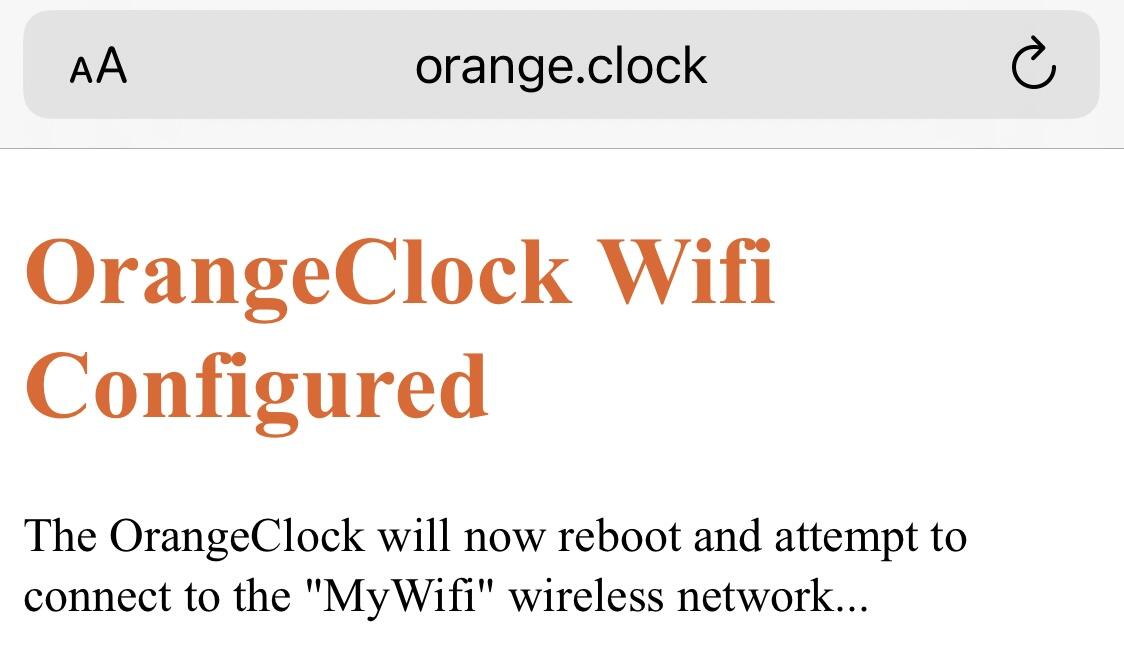
- Wait until the hash stats appear on the screen
If you have any questions, problems or suggestions I suggest asking Grok. That's how I vibe coded this thing anyways, Grok understands it better than me.
-
The wifi credentials are stored in plain text on the Pico, so the OrangeClock should be connected to an isolated network or guest network.
-
Strange effect: The display flickers every 12 hours (The reason is a full refresh).
-
Strange effect: After switching on, it takes about 2 minutes until the display shows something. The reason for this is the initialization of the eInk display and artifacts in other starting procedures. (will be fixed in the near future)
-
Strange effect: After reconnecting to the WIFI network or other connection issues, the following errors are displayed: This also happens when one of the data sources is temporarily unavailable. The update cycle is reduced to one minute until all data is available again.

- Strange effect: I often have seen API timeout errors, especially on first boot-up. It will retry in a few minutes, and after a couple tries usually gets it working.
https://www.raspberrypi.com/documentation/microcontrollers/raspberry-pi-pico.html
https://github.com/waveshare/Pico_ePaper_Code
https://github.com/peterhinch/micropython-nano-gui/
https://github.com/peterhinch/micropython-font-to-py
https://projects.raspberrypi.org/en/projects/get-started-pico-w/2
https://microcontrollerslab.com/raspberry-pi-pico-w-wi-fi-manager-web-server/
https://github.com/tayfunulu/WiFiManager
https://github.com/cpopp/MicroPythonSamples
https://github.com/simonprickett/phewap
Thank you to the original OrangeClock team for making their work Open Source so I can hack on it and make something else cool.
Now you should mod this and make something even cooler!
List of contributors