A minimal, efficiency-oriented desktop environment configuration with a focus on clean aesthetics and smooth Wayland performance.
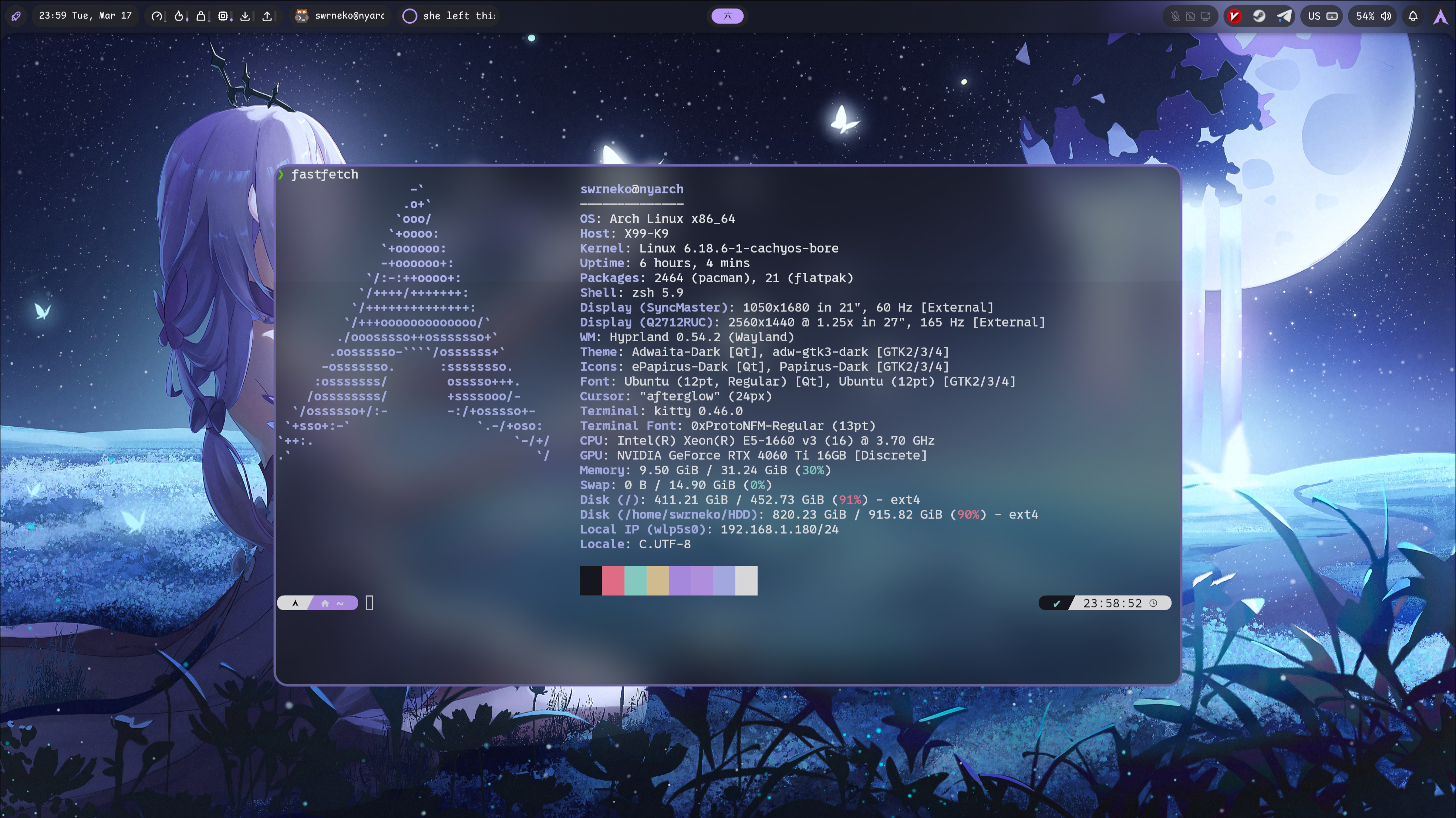
Click the image above to watch the full system showcase on YouTube
To ensure the system looks and functions exactly as shown in the video, you must install the following base packages.
Use pacman to install the system core:
sudo pacman -S --needed \
    hyprland hyprlock \
    xdg-desktop-portal-hyprland xdg-desktop-portal-gtk \
    xorg-xwayland \
    grim slurp wl-clipboard \
    brightnessctl playerctl wireplumber \
    kitty nemo btop ttf-0xproto-nerd
Why these are important:
- XDG Portals: Essential for screen sharing (Discord/Zoom) and file picker dialogs.
- Font (0xProto Nerd Font): Hardcoded in Kitty and Noctalia configs. Without it, icons will appear as empty boxes.
- Utilities:
grim/slurphandle screenshots, whileplayerctlmanages media playback via keybindings.
These components should be installed via an AUR helper (e.g., yay or paru):
- Noctalia Shell: Installation Guide. The heart of the UI (panels, widgets, and launcher).
- Zen Browser: My primary browser. You can change this to your preferred browser in the
hyprland.conffile.
I recommend a manual installation to ensure full control over your configuration files.
Clone the dots into your home directory:
git clone https://github.com/swrneko/dots-next.git
cd dots-nextBefore applying the dots, we will move your existing configurations to a backup folder to prevent any data loss.
# Create a backup directory
mkdir -p ~/dotfiles_backup

# Move existing directories (errors will be ignored if folders don't exist)
mv ~/.config/hypr ~/dotfiles_backup/ 2>/dev/null
mv ~/.config/kitty ~/dotfiles_backup/ 2>/dev/null
mv ~/.config/noctalia ~/dotfiles_backup/ 2>/dev/nullCopy the .config content from this repository to your system:
cp -r .config/* ~/.config/After copying the files, you must adjust a few settings to match your hardware, otherwise, the system might fail to boot or perform poorly.
Hyprland needs to know your monitor's resolution and refresh rate.
- Open the config:
nano ~/.config/hypr/hyprland.conf - Locate the
DISPLAYSsection. - The default is set to:
monitor=,preferred,auto,auto - If you have a specific monitor (e.g., 144Hz or 4K), modify it accordingly.
Example for a 2K 144Hz monitor:
monitor=DP-1, 2560x1440@144, 0x0, 1(Runhyprctl monitorsin your terminal to find your output name).
Hyprland works best on AMD/Intel. If you are using an NVIDIA GPU, you must uncomment (remove the #) these lines in hyprland.conf:
env = LIBVA_DRIVER_NAME,nvidia
env = XDG_SESSION_TYPE,wayland
env = GBM_BACKEND,nvidia-drm
env = __GLX_VENDOR_LIBRARY_NAME,nvidia
Failure to do this may result in a black screen, crashes, or visual artifacts.
| Shortcut | Action | Description |
|---|---|---|
SUPER + RET |
Terminal | Launch Kitty |
SUPER + D |
Launcher | Open Application Menu (Noctalia) |
SUPER + E |
Explorer | Open Nemo File Manager |
SUPER + Q |
Kill | Close focused window |
SUPER + SHFT + Q |
Exit | Terminate Hyprland session |
SUPER + CTRL + L |
Lock | Lock screen immediately (Hyprlock) |
PrintScreen |
Shot | Select area for screenshot |
Note: The SUPER key is usually the Windows logo key.
- Black screen on login: Double-check your monitor settings in
hyprland.confand ensure GPU drivers are installed. - Missing Panels: Ensure Noctalia Shell is installed and the
qscommand is available in your PATH. - Broken Icons: You likely missed the
ttf-0xproto-nerdpackage.
If you encounter a bug or have a suggestion, please open an Issue or leave a comment under the video. Enjoy!