Containers
Containers share the same OS. In contrast, each VM has its own OS. Because containers do not have to load an OS, they start up very quickly, and do not use a lot of memory.
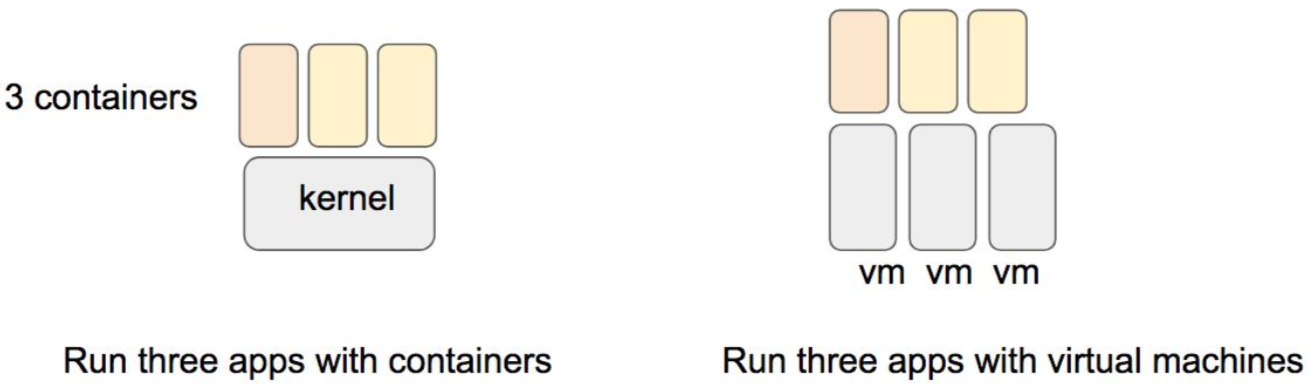
| Virtual Machine | Container | |
|---|---|---|
| Memory Overhead | Hi | Low |
| Startup time | Slow | Fast |
| Maintenance | Difficult | Easy |
| Scaling | 10s/server | 1000s/server |
| Primary use | Generic Infrastructure | Single daemon |
Disadvantage - Cannot run diff OS. In other words containers can only provide the host OS env unlike VMs that can emulate a different OS.
A container is a combination of several techniques:
- Containers have a unique file namespace. This means that when you are inside a container, you cannot see any files outside of the namespace. This is accomplished using the chroot tool. It changes the file system root.
- cgroups . A cgroup is a way to All processes in a container are members of the same process “cgroup”. They live and die together. Resources may be allocated to cgroups. You can freeze a group of processes in a cgroup.
- Virtual networking is the plumbing to give a unique IP address to a container. The IP address can be externally visible or not depending on your preference.
- Overlay fileystems are a mechanism to quickly load a lot of files into a container from host OS. The files are COW (copy on write). If you write to them, the overlay file system will intercept the write and store it in the overlay file system. This is all done transparently.
- Images are like a snapshot of a VM. You can make your own. Containers are created from images.
- Search images -
docker search debian - Download image -
docker pull ubuntu - List Images -
docker images - Start docker daemon -
systemctl start docker - To run image/start container: docker run -it —name
. Ex:
docker run -it --rm --name dan_ubunto c9d990395902 /bin/bash. We can also directly download and run image by using the image name instead of image id. - To exit: ^p^q - to break out. To exit completely use exit command. Also we can use —rm in the start command above to kill container on exit. Or use
docker rm <imageid> - Status:
docker ps -a - To re-enter into a running container -
docker attach <image id> - To pass data/variables into containers use -e. Ex:
docker run -e “parm1=myparm”This goes into the container’s env variable. Run the command ‘env | grep parm1’ to see it - -p is to map ports. Ex:
docker run -p 80:80-> map containers port to your port. - To expose the container’s port outside the node, we need to use the Expose command. Ex: EXPOSE 5432 is included in the Dockerfile.
- Changes to the local file system of a running container persist across starts and stops but are lost if the container is ever removed. If we require persistence beyond removal, Docker provides the concept of "Volumes”.
- We can create separate volumes and attach them to a docker container like below
- Create docker volume -
docker volume create my-vol - Attach it to a container -
docker run --rm -it -v my-vol:/mnt --name dan_ubunto c9d990395902 /bin/bash - Write to volume -
echo hi > /mnt/hi.txt && exit. This data would be persisted.
- Create docker volume -
- Starting an application within a container. i.e. how to define the app start within the Dockerfile
- Call the application binary directly using CMD command. Ex; CMD ["/usr/bin/some_binary"] Any time you add an argument to the end of a docker run command, the CMD instruction inside the container is ignored.
- Call a script that results in your binary starting
- Use systemd to start the application - useful for apps that are service-oriented (like httpd).
- Container size
- Performance - Smaller containers are better performant especially when it comes to start up. Use smaller base images and / or builder pattern - have separate containers for build vs deploy containers and have only needed files/dependencies in each container (ex. Exclude compilers etc)- to build smaller images.
- Security - Smaller size = less surface area and less vulnerabilities
Advantages- Scaling : The systems run on multiple machines and can track the containers running on each. In this way, clusters of physical machines can run 100s or 1000s of containers and share the workload amongst them. Load balancing: Externally, a single port may be exported, and requests to that port can be routed to any one of the containers. Replication : If one of the containers crashes, a new one can be spun up. This eliminates a single point of failure.
Kubernetes orchestration allows you to build application services that span multiple containers, schedule those containers across a cluster, scale those containers, and manage the health of those containers over time.
A working Kubernetes deployment is called a cluster. Worker nodes run pods, which are made up of containers. Each node is its own Linux® environment, and could be either a physical or virtual machine. The master node is responsible for maintaining the desired state of the cluster, such as which applications are running and which container images they use.

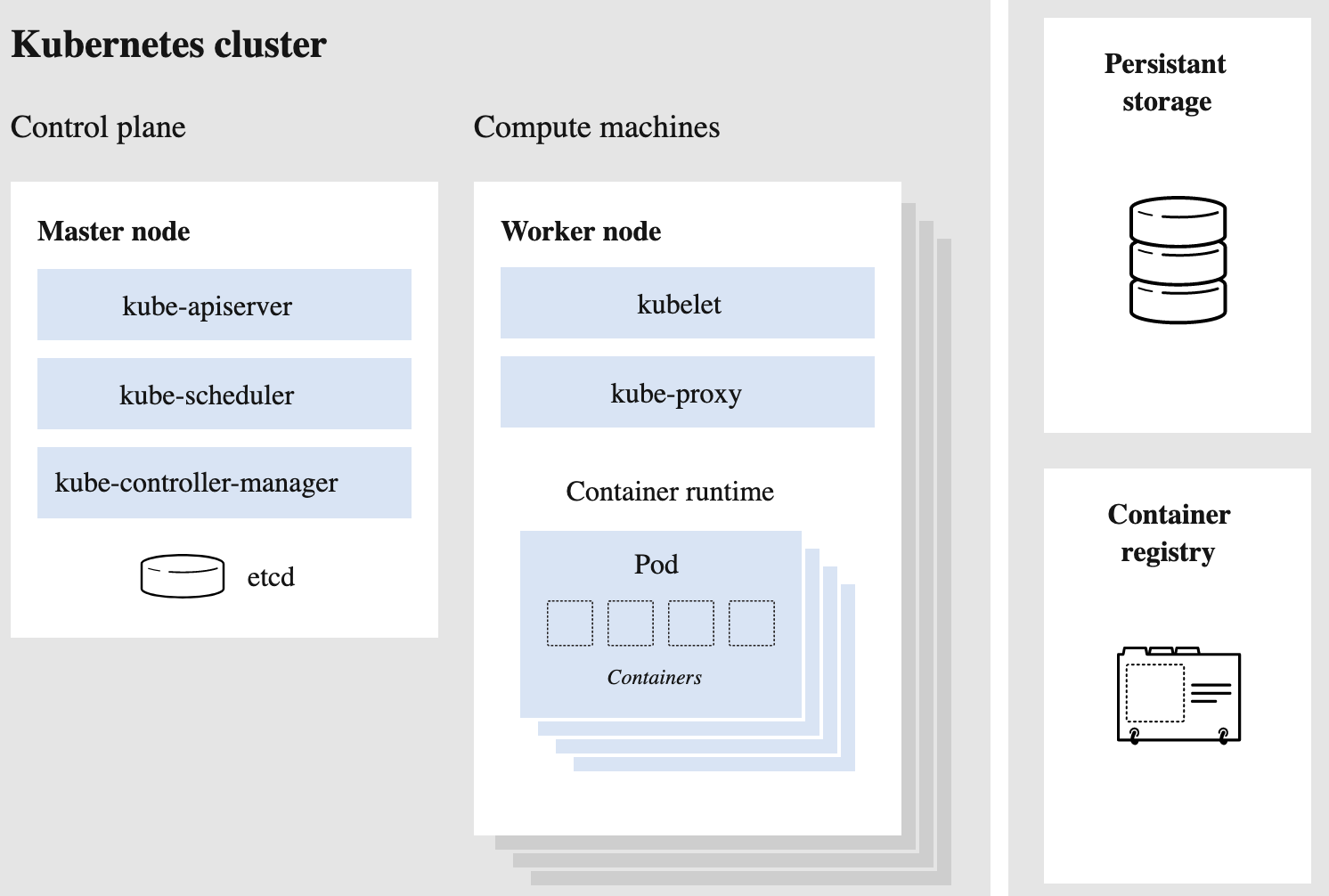
Master node - Control center, makes sure your containers are running in sufficient numbers and with the necessary resources. kube-apiserver - front end of the Kubernetes control plane, handling internal and external requests kube-scheduler - considers the resource needs of a pod, such as CPU or memory, along with the health of the cluster. Then it schedules the pod to an appropriate worker node. kube-controller-manager - makes sure the correct number of pods are running, handles pods that go down, requests go to the right endpoint etc. Etcd - used for config mgmt
Worker Node - Pod - smallest and simplest unit and represents a single instance of an app. Can be connected to persistent storage. kubelet - Each worker node contains a kubelet, a tiny application that communicates with the master node. The kublet makes sure containers are running in a pod and executes actions given by the master node on the worker. kube-proxy - The kube-proxy handles network communications inside or outside of your cluster—relying either on your operating system’s packet filtering layer, or forwarding the traffic itself.
Persistent Storage - Kubernetes allows users to request storage resources without having to know the details of the underlying storage infrastructure. Persistent volumes are specific to a cluster, rather than a pod, and thus can outlive the life of a pod. Container registry - The container images that Kubernetes relies on are stored in a container registry.